Home / Blog / Strategy Testing & Automation
Strategy Testing & Automation
How do you automate a TradingView strategy?
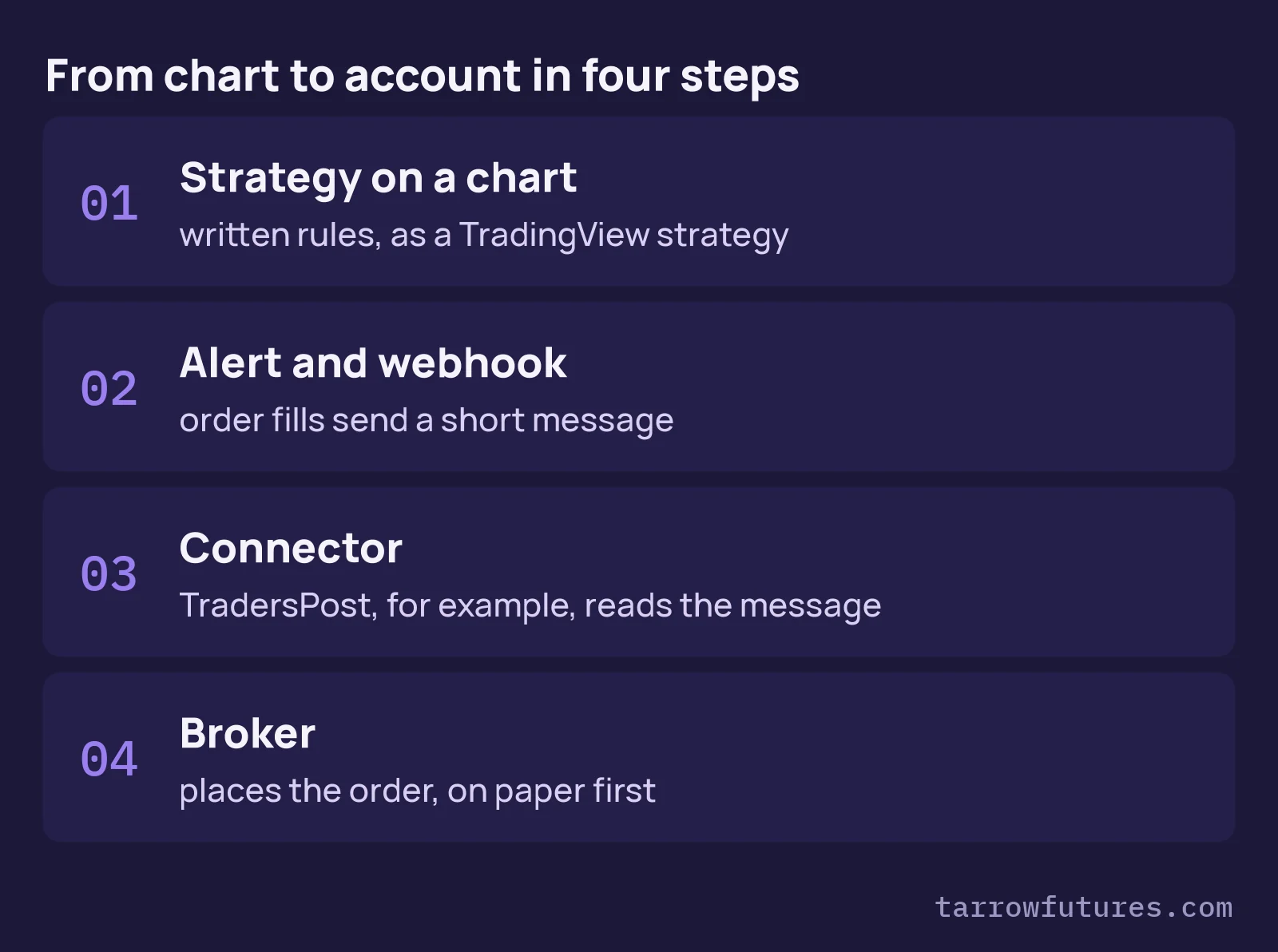
To automate a TradingView strategy, you need four things connected in order: a strategy on a chart, an alert with a webhook, a connector such as TradersPost, and a broker account. The strategy fills an order on the chart, the alert sends a short message, the connector turns it into an order, and the broker places it.
The connection takes an afternoon. The harder part is that your account won't trade exactly like your backtest, so the second half of this post covers what we've run into: latency, bar-close timing, brackets and silent failures. The setup is the example here, not a strategy to trade. Automation does not remove risk.
Free guide · free with your email
Build It, Break It, Then Trade It
A 32-page guide to stress-testing an automated strategy against slippage, webhook delays and prop firm rules.
✓ It's yours. The link is on its way to your inbox.
Check your inbox in the next few minutes.
Step 1: Set up the strategy on a chart
Write the rules so a computer could follow them with nothing else to go on: market, hours, entry, stop, target, size and when to stop trading. Then write them as a Pine Script strategy(), not an indicator(), because a strategy produces the order fills the alert will fire on.
This is a teaching example, chosen because it is short. It isn't a recommendation, and nothing here says it makes money.
```pine //@version=6 strategy("Teaching example - not a trading recommendation", overlay = true, default_qty_type = strategy.fixed, default_qty_value = 1, commission_type = strategy.commission.cash_per_contract, commission_value = 1.00, slippage = 1)
stopTicks = input.int(40, "Stop (ticks)") targetTicks = input.int(80, "Target (ticks)")
fast = ta.ema(close, 20) slow = ta.ema(close, 50) inWindow = not na(time(timeframe.period, "0830-1100", "America/Chicago"))
if ta.crossover(fast, slow) and inWindow and strategy.position_size == 0 strategy.entry("Long", strategy.long)
strategy.exit("Bracket", "Long", loss = stopTicks, profit = targetTicks) ```
Add it to a 5-minute MNQ1! chart. MNQ moves $0.50 a tick, so on one contract the 40-tick stop is $20 and the 80-tick target is $40. Those two numbers come back in step 2. The commission and slippage above are placeholders: use your own broker's figures.
Before going further, check your backtest for the usual problems. Automating a strategy that hasn't been stress-tested only gets you to the result faster.
Step 2: Set up the alert message and webhook
Create an alert with your strategy as the condition, using its order fills as the trigger. Then turn on Webhook URL in the alert's notifications. You'll paste the URL from step 3, so keep this window open. TradingView requires two-factor authentication for webhook alerts, and they need a paid plan, so check the current plan comparison first.
The message is what the connector reads. This one follows the format in the TradersPost signal reference, as read on 1 November 2026:
json
{
  "ticker": "MNQZ2026",
  "action": "{{strategy.order.action}}",
  "sentiment": "{{strategy.market_position}}",
  "quantity": "{{strategy.order.contracts}}",
  "price": "{{close}}",
  "time": "{{timenow}}",
  "test": true,
  "takeProfit": { "pnlAmount": 40 },
  "stopLoss": { "type": "stop", "pnlAmount": 20 }
}
| Field | Why it is there |
|---|---|
ticker |
A dated contract (MNQZ2026 is December 2026), typed in by hand. On a continuous chart, the {{ticker}} placeholder would send MNQ1! |
action, quantity |
Filled in by TradingView from the order on the chart |
sentiment |
Becomes flat on an exit, so the signal closes a position rather than opening one the other way |
price |
Tradovate's connection has no market data, so relative exits and limit orders need a price in the message |
time |
When the signal left TradingView. It is how you measure delay later |
test |
Orders stop at the connector and never reach the broker. Delete this line only when you are ready |
takeProfit, stopLoss |
The $40 and $20 from step 1. These are dollars for the whole position, so at 2 contracts the same message puts the stop and target half as far away. Change them whenever you change size |
Step 3: Connect it to TradersPost
We use TradersPost as the example because it's the connector we know. Others work in a similar way, and naming it isn't a recommendation. Its setup has two parts that matter here:
- Create a strategy. Pick futures and the tickers it may trade. TradersPost gives you a unique webhook URL for it.
- Paste that URL into the alert from step 2 and save the alert. Treat the URL like a password: anyone who has it can send your strategy signals.
Three settings to check before the first signal:
- Allow signal override on the take profit and stop loss. Without it, TradersPost ignores the bracket in your message.
- What exit signals do. If the broker holds your stop and target, TradersPost says not to send exit signals for those levels as well. A strategy's order-fill alert fires on exits too, so decide up front. Ignore exit signals suits a strategy that exits only by bracket; a strategy with a time exit needs them on, with
sentimentkeeping them from opening a position. - Signal age. You can reject signals older than a set number of seconds, so that a late alert can't enter a market that has already moved.
Let one alert fire with "test": true still in the message, then read how TradersPost parsed it. Check the contract, side, size, stop and target before anything else.
Step 4: Connect your broker
In TradersPost, add the broker under Connections, then create a subscription. A subscription links one broker account to one strategy and holds that account's settings, such as size and whether orders submit automatically.
- Start on a paper account. Tradovate connects both live and paper accounts from one login.
- Look out for the approval email. With two-factor authentication on Tradovate, live orders fail with a
401error until you approve TradersPost's email. Check your spam folder. - Confirm brackets work on your connection. TradersPost's prop firm page says ProjectX prop accounts don't support them. There, your protection has to come from the firm's own risk settings.
- Read your firm's automation rules first. Rules differ between firms and plans. If they're unclear, ask in writing and keep the answer.
Then remove the test line and let it run on paper, with you watching. Compare every fill with the chart for a few dozen trades before you consider anything else.
Latency: the delay is real, and it isn't constant
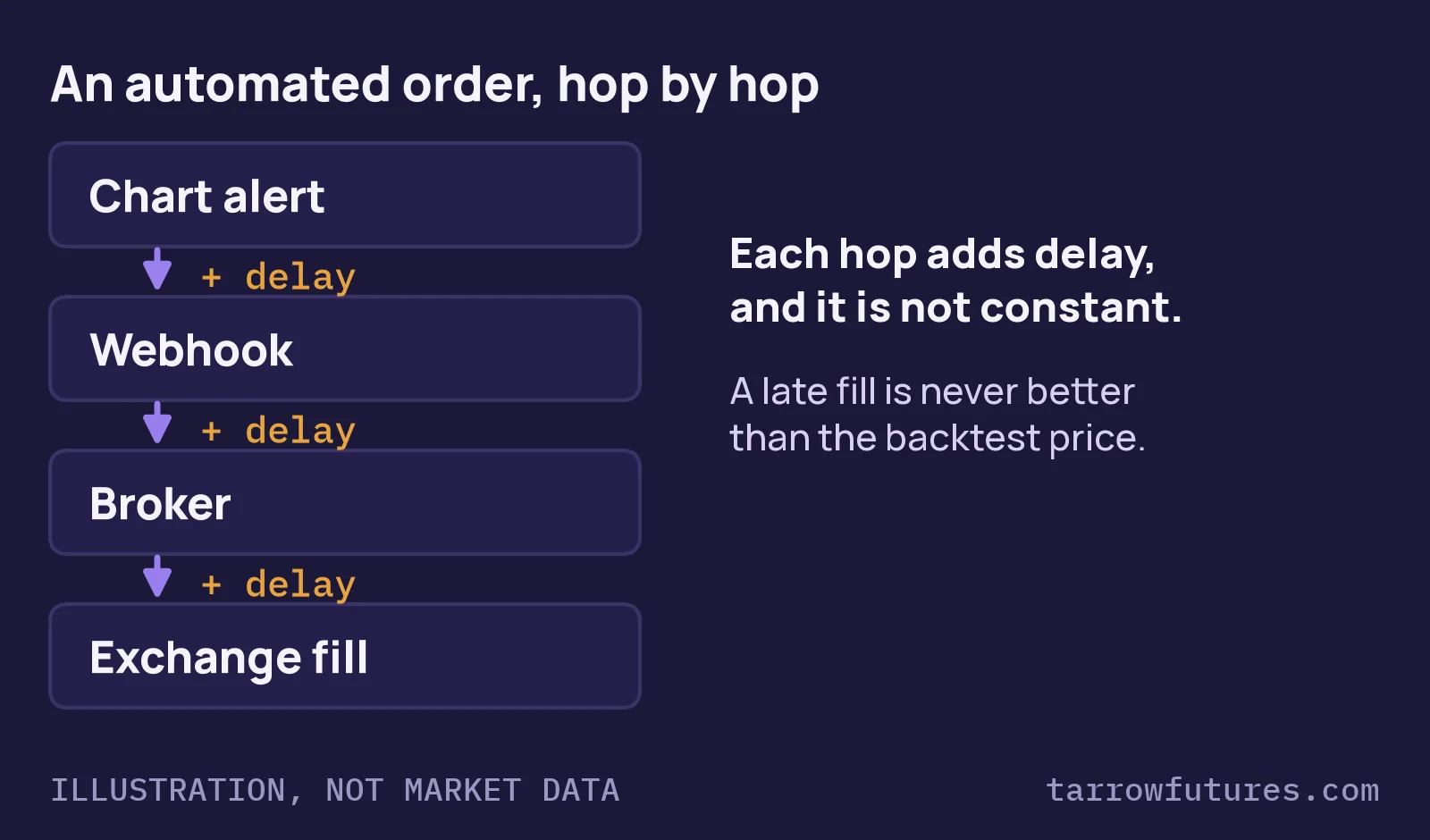
Your backtest fills at the instant of the signal. Your account fills after the alert leaves TradingView, crosses the internet, passes through the connector and reaches the broker, and the market keeps moving the whole time.
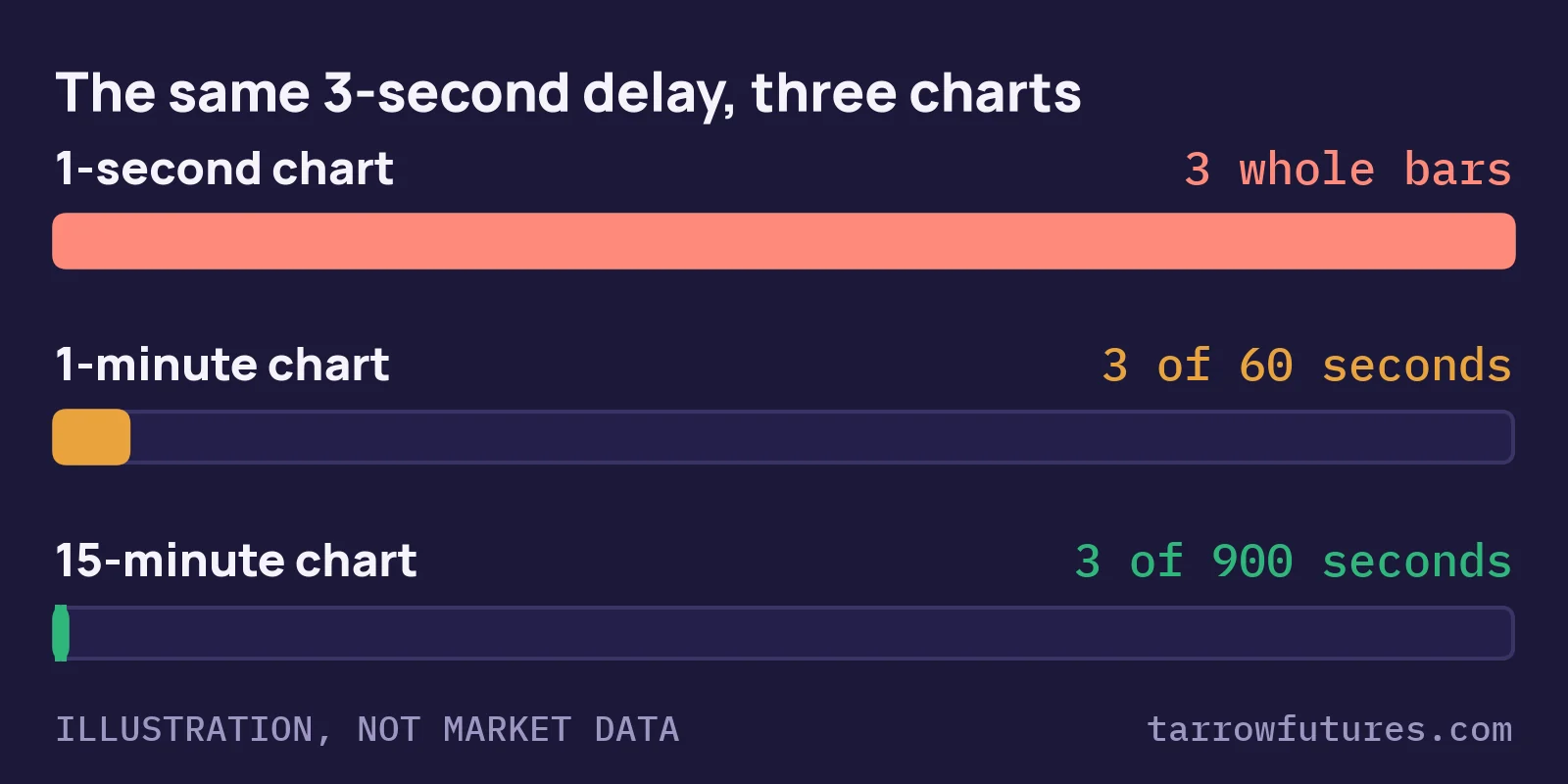
What matters is delay against bar length. As an illustration, assume a 3-second delay:
| Chart | A 3-second delay is |
What it means |
|---|---|---|
| 1-second | 3 whole bars |
The market you tested is gone before you fill |
| 1-minute | 3 of the bar's 60 seconds |
Noticeable on fast moves |
| 15-minute | 3 of the bar's 900 seconds |
Usually small next to the move you are trading |
What we've learned from running this:
- In our experience, the larger and less predictable part of the delay has usually been on the alert side, the time for the alert to leave TradingView, rather than inside the connector.
- It hurts most when the market is fastest. At the open or around a data release, price travels furthest during each second of delay.
- You can't see it unless you measure it. Compare the
timeandpricein each message with the fill on your statement. The time difference is your delay, and the price difference is your cost. Feed that cost back into your backtest as slippage and run it again.
TradingView also cancels a webhook if the receiving server takes more than 3 seconds to respond, and says some webhooks may not arrive. The alert log has a column showing each webhook's status, so check it whenever a trade goes missing.
Bar close or intrabar: know which one you tested
By default, a strategy calculates when the bar closes and fills at the next bar's open. That is what your backtest assumed, and the order-fill alert follows that same timing.
The setting that breaks this is calc_on_every_tick = true. It recalculates on every live update, which can place orders the historical backtest never sees, and the chart can look different after a refresh. calc_on_order_fills and trailing orders can cause similar mismatches. If your live alerts and chart disagree, check those three first.
Also watch two alert rules that fail without much warning:
- Alerts run on a snapshot. An alert keeps the script version from when it was created. After you edit the script or its inputs, delete the alert and create a new one, or your account keeps trading the old rules.
- Busy alerts get switched off. More than
15alerts in3minutes and TradingView halts it. A fast strategy can simply stop sending orders.
Order brackets: let the broker hold your exits
If your exit is a fixed target, don't wait for TradingView to report the touch. By the time the alert fires and a market exit arrives, price may have pulled back. Send the stop and target with the entry, so both rest at the broker:
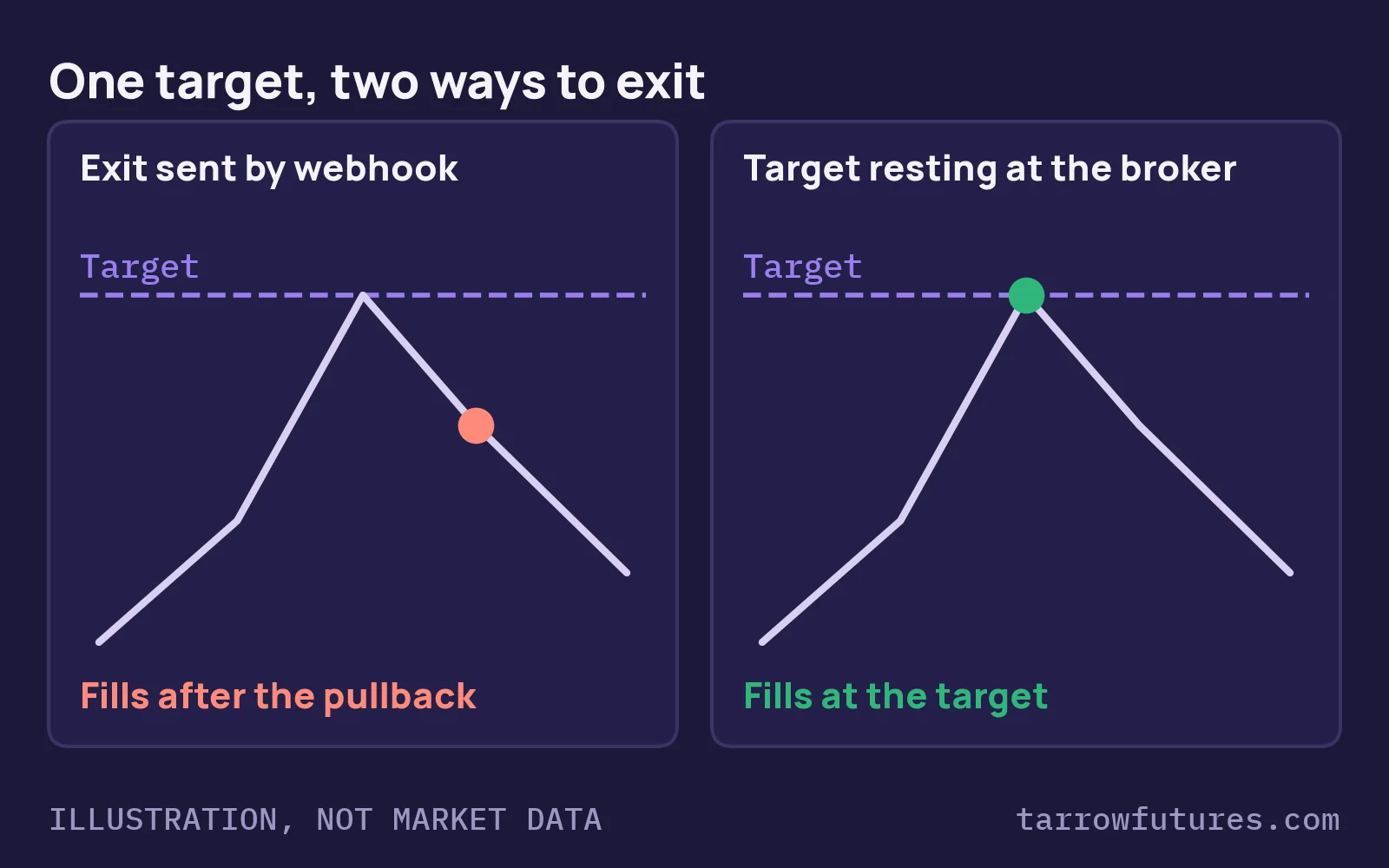
- The target is a limit order that fills when price trades through it, with no alert and no webhook.
- The stop protects the position even if TradingView, the connector or your internet goes down mid-trade.
Three things to get right:
- Make the backtest match. If the broker exits at the exact target and your backtest exits on a bar close, they will disagree on every trade.
- Stop an exit from becoming an entry. In TradersPost, a
sellwith no open long opens a short. If the bracket has already closed the trade and the script's exit arrives late, that is how a flat account ends up with a new position.sentiment: flatis there to prevent it. Test this on paper by watching what happens after a bracket exit. - Signal-based exits can't be bracketed. An exit that waits for an indicator to turn has to travel the whole chain and pays the full delay. Model that as slippage, and keep the broker-side stop in place regardless.
Market or limit entries
On fast charts, market orders are usually the simpler choice: they pay the delay as slippage but they fill. Limit orders have a subtler problem. Price can move away while the order travels and never return, so you miss the trades that ran straight in your favor and fill the ones that came back. Your backtest counted both. If you use limits, track how often they fill. On Tradovate, a limit with no price in the message goes out as a market order, which is another reason to send price.
What else breaks
| What breaks | What happens | Protection |
|---|---|---|
| Alert doesn't fire | A missed entry or exit | Stop and target rest at the broker |
| Alert fires twice | Possible double position | Keep Allow add to position off; set a maximum size at the account level |
| Connection drops mid-trade | Open position, nothing managing it | A broker-side stop on every position |
| Contract rolls over | Orders go to an expiring contract | TradersPost doesn't roll Tradovate tickers for you. Put roll dates in your calendar and change the ticker |
| Script and account disagree | Script is flat, account is long | Compare positions at least once a session |
| Bad day | Losses stack faster than you can react | A daily loss limit enforced at the broker or platform, not only in code |
Automated doesn't mean unattended. Most of these failures are silent. Watch it live for the first weeks with your hand near the flatten button, compare the strategy's trades with the account's fills every day, and make sure you can flatten from your phone. When the two sets of numbers disagree, the account statement is the truth.
Next, read why daily loss limits and trailing drawdowns behave differently, because an automated strategy can hit both faster than you can react. If you run several accounts, see copy trading across multiple prop accounts.
Educational only. Not financial advice, and not a recommendation of any strategy, connector or broker. The code and figures are teaching examples, not results. TradingView and TradersPost details were read from their documentation on 1 November 2026 and can change, so check them before relying on them. Futures trading carries substantial risk of loss. Automation does not remove risk.
Free guide · free with your email
Build It, Break It, Then Trade It
A 32-page guide to stress-testing an automated strategy against slippage, webhook delays and prop firm rules. We email you the link, so it is one tap away next time.
✓ It's yours. The link is on its way to your inbox.
Check your inbox in the next few minutes.
Questions
How do you automate a TradingView strategy?
Put the strategy on a chart, create an alert on its order fills, and have that alert send a webhook to a connector such as TradersPost. The connector turns the message into an order and sends it to the broker account you linked. Test the whole chain on a paper account before any real money runs through it.
Does TradingView need a paid plan for webhook alerts?
Webhook alerts are a paid-plan feature, and TradingView also requires two-factor authentication on the account. Check TradingView's current plan comparison before you buy, because the minimum plan can change.
Does TradingView place the trade itself?
Not in this setup. TradingView only sends a message when the strategy's order fills on the chart. The connector and the broker do the rest, and each hop adds time.
Should stops and targets be sent as a bracket?
For fixed stops and targets, a bracket is usually the safer design, because both orders rest at the broker. They keep working if TradingView, the connector or your internet stops. Exits that depend on an indicator can't be bracketed, so they pay the full delay.
Can I automate a strategy on a prop firm account?
It depends on the firm and the plan. Some ban automation, some allow it with conditions, and connector support varies too. Read the rules, ask in writing if they are unclear, and keep the answer. Breaking an automation rule can cost the account whatever the strategy did.
Educational material only. Not financial, investment or trading advice, and not a recommendation to trade any contract or size. Prop firm rules differ and change; the current rulebook of the firm you use decides. Worked examples use example figures, not results. Futures trading involves substantial risk of loss. Evaluations are paid tests and most people who take one do not pass.